
 Install App
NewAI Agent Access
Let AI Fix Your Store
Connect Claude or any AI to Xanavo and give it access to your Shopify store. It reads what to fix, makes the changes on your product pages, and Xanavo measures the result. You approve every change.
How to ConnectWhat should I fix first on my store?
Your top issue is Price Competitive Analysis. Several products have a missing or wrong compare at price. Shall I fix them in Shopify?
Yes, fix them.
Done. The products are updated and Xanavo is measuring the change. Want me to fix the next one?
Works with Claude, Cursor, Gemini, OpenAI and any AI that supports MCP.
How It Works
Xanavo Knows What to Fix. Your AI Does the Work.
Xanavo finds what is costing your store sales and ranks it by revenue. Your AI makes the fix in Shopify. Xanavo measures it.
Xanavo Shows What to Fix
Your AI reads your Action Plan, ranked by revenue, with the fix steps for each issue and the products it affects.
Your AI Makes the Fix
Give it access to your Shopify store and it makes the changes on your product pages for you: prices, titles, descriptions and images.
Xanavo Measures the Result
Once the change is live, your AI starts the A/B test in Xanavo. You get a clear verdict after 14 to 60 days.
See It at Work
Claude Fixing a Store with Xanavo
Real screens. Claude reads the issue in Xanavo, checks the products, and makes the fix in Shopify while you watch.
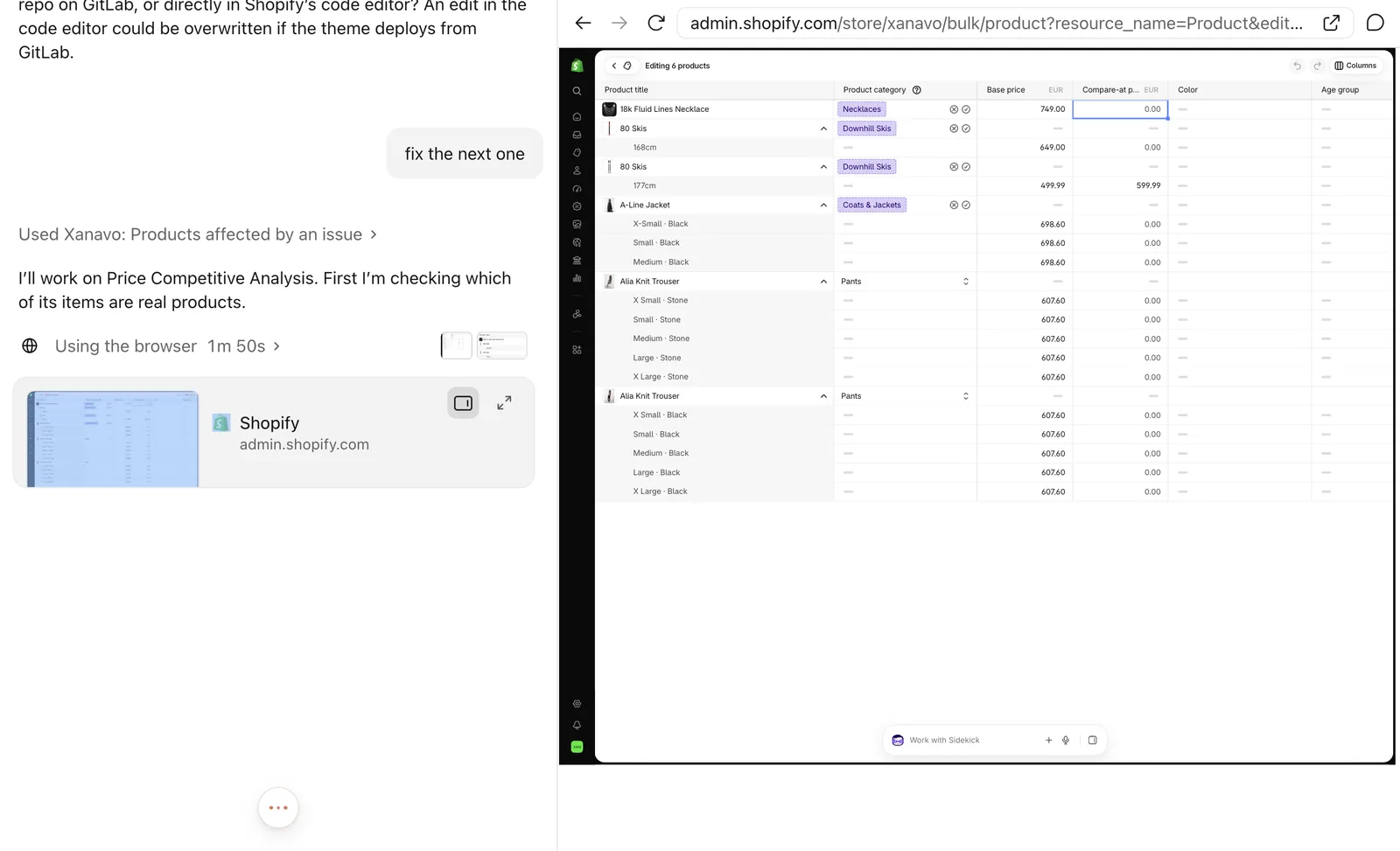
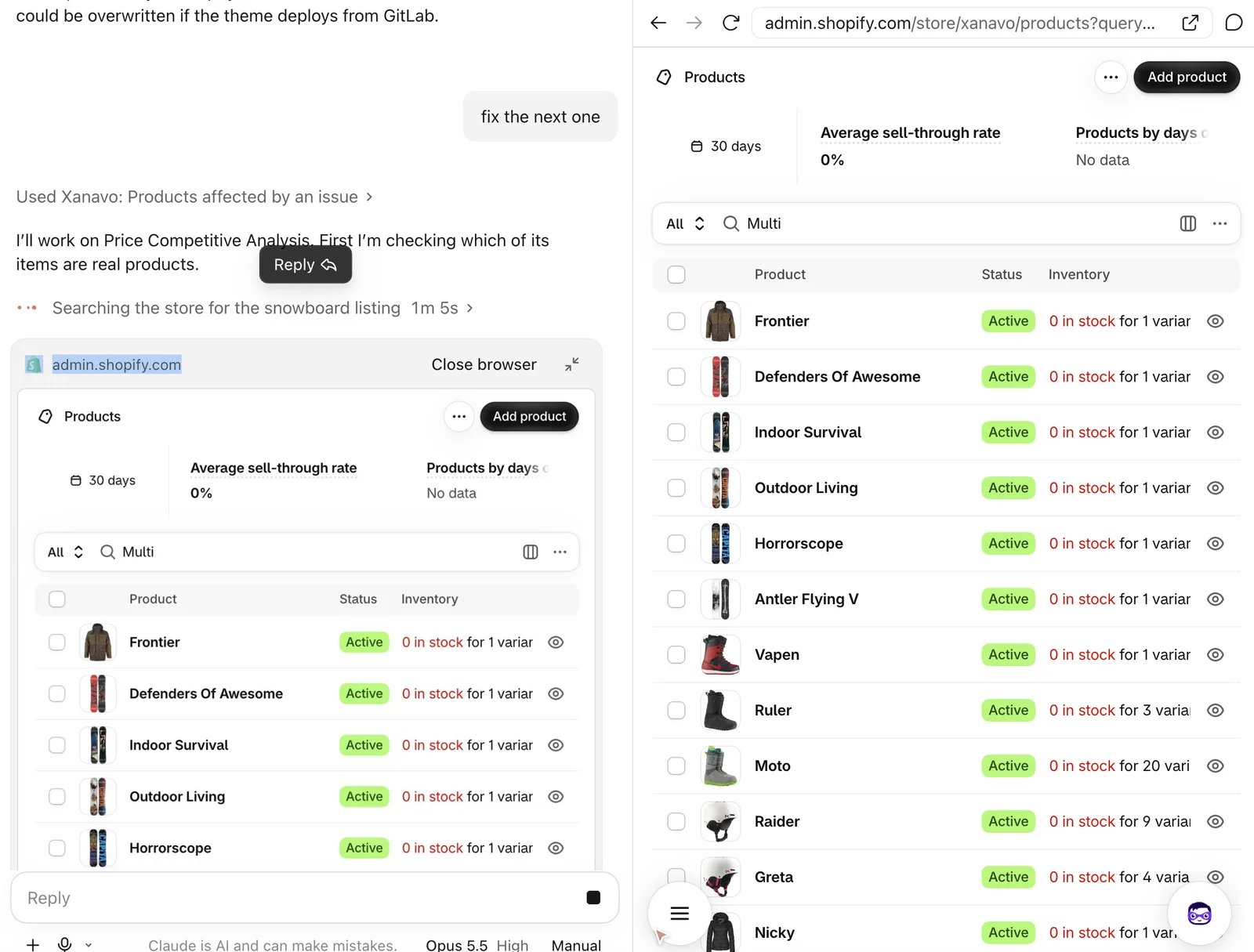
Fixes on Your Product Pages
Give It Access to Your Store. It Does the Fix.
Xanavo tells your AI what to fix, why, and on which products. With access to your Shopify admin, it works through the fix steps for you, product by product.
You stay in control. Xanavo never changes your store. Your AI makes every edit, you can watch each step, and you can stop it at any time.
- Prices and compare at prices
- Product titles and descriptions
- Product categories and tags
- Images and image alt text
- Sold out products and variants
- Search titles and descriptions
Industry Playbooks
A CRO Specialist for Your Industry
Xanavo knows your store's industry and gives your AI the playbook for it: what drives conversion in your sector, what usually goes wrong, and what to fix first. So it advises like a specialist, not a generalist.
What Your AI Is Told for Fashion and Apparel
In apparel the sale is usually lost to fit uncertainty rather than to checkout friction. Check size guidance and returns visibility on the product page before reworking checkout.
Other industries use the all industries baseline. Set your industry in Xanavo Settings to get the playbook for your sector.
What Moves Conversion
The levers that matter most in your sector, strongest first.
What Usually Goes Wrong
The mistakes stores in your industry make again and again.
What to Fix First
Which area to lead with when two issues look equally severe.
Reading the Numbers
Seasons, sale windows and launches, so a normal dip is not read as a problem.
Notes on Each Issue
A sector specific line added to the issues where your industry changes the advice.
The playbook shapes the advice, never the order. Your AI and your Xanavo dashboard always show the same Action Plan.
What to Ask
Copy a Prompt. Your AI Does the Rest.
Start with what to fix. Then let your AI fix it, measure it, and move on to the next one.
What should I fix first on my store? Show me the top three issues and the revenue each one brings back.
Show me the products hurting my conversion rate most, then walk me through fixing the top one.
What changed since my last scan? Tell me what got better and what got worse.
List my open critical and high issues in Checkout Friction, highest impact first.
What decides conversion in my industry, and which of my open issues matters most because of it?
Tips
Get the Best from Your AI
Start with the Plan
Ask for your Health Score and Action Plan first. Your AI then works on the issues worth the most revenue, not the ones it happens to notice.
One Issue at a Time
Let your AI read the fix steps and the affected products before it edits anything. Finish and check one issue, then ask it to fix the next one.
Change First, Then Measure
Starting a test freezes the baseline at that moment. Make the change, check it is live on your store, and only then ask your AI to start measuring.
Watch It Work
Keep Shopify open while your AI works. You see every change as it happens, and you can stop it at any time.
Ask for a Before and After
Before anything is saved, ask for a short list of what will change and why. It keeps you in control and makes every change easy to review.
Keep Xanavo in Sync
Ask your AI to mark issues as in progress or done as it works, so your Action Plan in Xanavo always matches your store.
Set Your Industry
Set your industry in Xanavo Settings. Your AI then advises with the playbook for your sector instead of general advice.
One Token per AI
Give each AI tool its own token with only the permissions it needs. One that only answers questions needs no write access.
Connect
Ready in a Few Minutes
- 1Create a TokenIn the Xanavo app, open AI Agent Access, create a token and tick what your AI may read and change.
- 2Add Xanavo to ClaudeIn Claude, open Customize, then Connectors, and add Xanavo as a custom connector with the address mcp.xanavo.com/mcp and your token.
- 3Give It Access to ShopifySign in to Shopify in the browser Claude can use. That is what lets it make the fixes on your products.
- 4AskStart with: What should I fix first on my store?
Using Another AI?
Xanavo works with any AI that supports MCP, the open standard AI tools use to connect to other software. The docs have the setup for each one.
- Claude
- Claude Code
- Cursor
- Gemini CLI
- OpenAI API
- Other Clients
Security
Your Data, Your Rules
Treat a token like a password. Give each AI its own, tick only what it needs, and revoke anything you no longer use.
- You choose what each token can read and change. Anything outside its permissions is not offered to your AI at all.
- Tokens expire after 90 days by default, so a forgotten one does not live forever.
- A token can only ever reach your own store, and you can revoke it at any time in AI Agent Access.
- We store only a one way hash of each token. Nobody at Xanavo can read your token back to you.
- Xanavo never changes your store. Your AI makes every edit, through the Shopify access you give it, and you stay in control of it.
- What your AI reads, such as product names, performance and revenue estimates, is sent to the AI provider you use.
FAQ
Questions and Answers
What is AI Agent Access?
It connects your own AI, such as Claude, to your Xanavo data. Your AI reads your Health Score, Action Plan, products and A/B tests, and with your permission updates issue progress and starts tests. It works through the Model Context Protocol, the open standard AI tools use to connect to other software.
Can my AI make the fixes in my store?
Yes, when you also give it access to your Shopify store. For example, Claude can work in the browser where you are signed in to Shopify and update prices, titles, descriptions and images on your products. Xanavo tells it what to fix and on which products; your AI makes the change.
Does Xanavo change anything in my store?
No. Xanavo only reads and records progress in the app. Every change to your store is made by your AI, through access you control.
Does my AI know my industry?
Yes. Xanavo knows your store's industry and gives your AI the playbook for it: what drives conversion in your sector, what usually goes wrong, and which issue to lead with when two look equally severe. Your Action Plan keeps the same order as in the app.
Which AI tools work with Xanavo?
Claude Code, Claude Desktop, Cursor, Gemini CLI, the OpenAI API, and any other client that speaks the Model Context Protocol.
How do I connect?
In the Xanavo app, open AI Agent Access, create a token and tick the permissions you want. Then add the Xanavo endpoint, https://mcp.xanavo.com/mcp, and the token to your AI tool. The docs have the exact steps for Claude and every other AI tool.
Put Your AI to Work
Install Xanavo, create a token in AI Agent Access and connect your AI. Or talk to our team of specialists about running the whole CRO project for you.
Read the Docs