
 Install App
Overview
AI Agent Access connects your own AI, such as Claude, to your Xanavo data. It works through MCP, the Model Context Protocol, the open standard AI tools use to connect to other software. Your AI reads your Health Score, your Action Plan ranked by revenue, your products and your A/B tests, and with your permission updates issue progress, starts tests and runs scans.
Xanavo never changes your store. Your AI makes every edit, and you stay in control of it. Give your AI access to Shopify as well and it carries out the fixes on your product pages, then starts the test that measures them.
Xanavo Endpoint
https://mcp.xanavo.com/mcpIt is the same for every AI tool: what identifies your store is the token, not the address. Your AI sends the token in the header Authorization: Bearer.
Quick Start
- 1Run at least one scan in Xanavo, so your AI has results to read.
- 2In the Xanavo app, open AI Agent Access and create a token with the permissions your AI needs.
- 3Add the endpoint and the token to your AI tool, as shown for each tool below.
- 4To let your AI make the fixes, give it access to your Shopify store as well.
- 5Ask your AI: What should I fix first on my store?
Create a Token
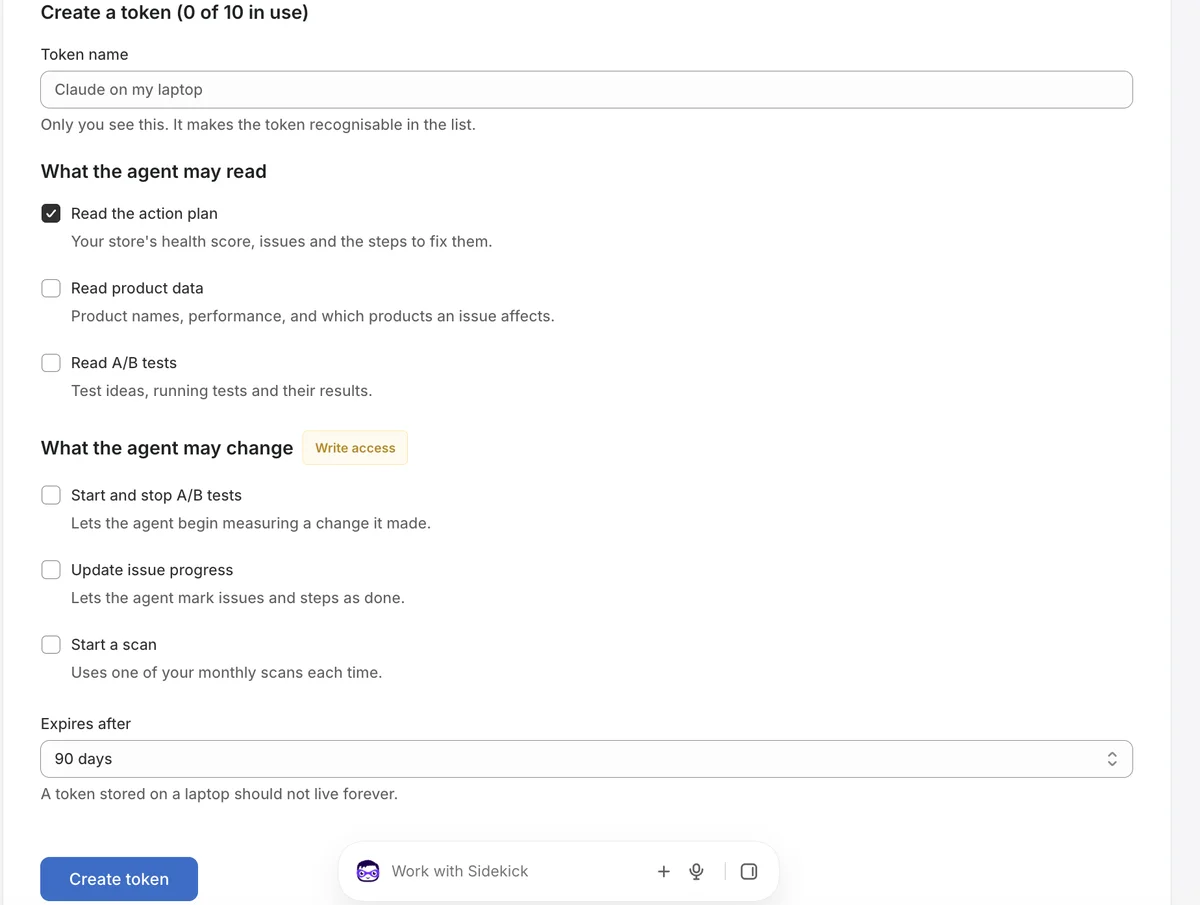
In the Xanavo app, open AI Agent Access and go to Create a Token. Give it a name you will recognise, such as Claude on my laptop, tick what the agent may read and what it may change, and choose when it expires. You can have up to 10 tokens in use. Tokens last 90 days by default.
- Read only is enough for questions, reports and planning.
- Add Start and Stop A/B Tests and Update Issue Progress when your AI makes the fixes for you.
- Start a Scan uses one of your monthly scans each time, so only tick it when you want your AI to run scans.
- Permissions cannot be added to an existing token. Create a new one instead.
The token is shown once. Copy it straight into your AI tool and treat it like a password.
Connect Your AI
Pick the AI tool you use. Each one needs the Xanavo endpoint and one of your tokens.
The easiest start. Add Xanavo as a custom connector, then switch it on in any chat. To let Claude make the fixes, give it access to your Shopify store too, for example through the browser where you are signed in to Shopify.
- 1In Claude, open Customize, then Connectors. Click Add, choose Custom, then Web.
- 2Name it Xanavo and paste the Xanavo endpoint below, then click Continue.
- 3For authentication choose No sign in, and add one request header: Authorization, with the value Bearer followed by your token.
- 4Click Add, switch the connector on in a chat and ask: What should I fix first on my store?
https://mcp.xanavo.com/mcpTry It
Once connected, ask your AI something like this.
What should I fix first on my store?

Show me the products hurting my conversion rate most,
then walk me through fixing the top one.

I just changed the product page. Start measuring it.
A good AI will read your Action Plan, pick the highest impact issue, and work through its steps with you.
Check the connection yourself with the command below. It should return a short status line. If it does not, the problem is the connection rather than your AI.
curl -s https://mcp.xanavo.com/healthPermissions and Tools
A token only carries the permissions you tick. Your AI cannot see anything it has no permission for: it is not offered and then refused, it is simply not there.
Read the Action Plan
read:plan- Read your store's Health Score and what changed since the last scan
- List your Action Plan, filtered by area, severity or status
- Read one issue with its fix steps and revenue impact
Read Product Data
read:products- List your products, worst first
- Read one product's health, search visibility and findings
- List the products or collections a given issue affects
Read A/B Tests
read:tests- List test ideas, running tests and finished results
- Read one test with its evidence and verdict
Start and Stop A/B Tests
write:testsCan Change Data- Start measuring a change you have already made
- Stop a running test
Update Issue Progress
write:issuesCan Change Data- Mark an issue as in progress, done or not relevant
Start a Scan
write:scanCan Change Data- Start a scan, which uses one of your monthly scans
Your AI should only start a test once the change is live in your store. Marking an issue done that still has unticked steps, or that came back after an earlier fix, asks your AI to confirm first.
Industry Playbooks
Xanavo knows each store's industry, and gives your AI the playbook for it. That turns a general assistant into a CRO specialist for your sector: it knows what actually drives conversion there, what characteristically goes wrong, and how to break a tie when two issues look equally severe.
What a Playbook Covers
- What moves conversion in your sector, strongest first.
- What usually goes wrong for stores in your industry.
- Which area to lead with when two issues look equally severe.
- How to read your numbers over time: seasons, sale windows and launches, so a normal dip is not mistaken for a problem.
- A sector specific note on the issues where your industry changes the advice, such as size guidance in fashion or dimensions in home and living.
How Your AI Receives It
- A brief when your AI connects, so it starts every conversation knowing your sector.
- A short sector read with your store's health, so it reaches your AI even if your AI tool skips the brief.
- The CRO prompts built into Xanavo, which you can pick by name in your AI tool.
Sectors
What Your AI Is Told for Fashion and Apparel
In apparel the sale is usually lost to fit uncertainty rather than to checkout friction. Check size guidance and returns visibility on the product page before reworking checkout.
Other industries use the all industries baseline. Set your industry in Xanavo Settings to get the playbook for your sector.
The playbook shapes how your AI explains and leads, never the ranking: your AI and your Xanavo dashboard always show the same Action Plan. If your industry is not set, your AI compares your store with the all industries baseline. Set it in Xanavo Settings to sharpen both the benchmarks and the advice.
Let Your AI Make the Fix
Xanavo never changes your store. To let your AI carry out the fixes, give it access to Shopify as well. It then works from the Xanavo fix steps and makes the change itself.
On Your Product Pages
Most fixes live in your Shopify admin: prices and compare at prices, titles, descriptions, categories, tags, images and alt text. Sign in to Shopify in the browser your AI can use, such as Claude in Chrome, and ask it to fix the issue. It opens your products, makes the changes, and you can watch every step and stop it at any time.
Theme Changes (Advanced)
For changes to your theme code, AI tools that work in your terminal, such as Claude Code, Cursor and Gemini CLI, can use Shopify CLI. Work on an unpublished copy, preview it, and publish it yourself in Shopify.
# 1. Pull your live theme into a local folder
shopify theme pull --store your-store.myshopify.com

# 2. Let your agent make the fix, then preview it
shopify theme dev --store your-store.myshopify.com

# 3. Upload it as a new unpublished theme, then review and publish in Shopify
shopify theme push --unpublished --store your-store.myshopify.com
The Full Loop
- 1Read the top issue, its fix steps and the products it affects.
- 2Mark the issue as in progress.
- 3Make the change on the affected products in Shopify.
- 4Review a before and after summary, then save.
- 5Once the change is live, start the A/B test.
- 6Mark the issue as done when every step is finished.
Tips for Best Results
Start with the Plan
Ask for your Health Score and Action Plan first. Your AI then works on the issues worth the most revenue, not the ones it happens to notice.
One Issue at a Time
Let your AI read the fix steps and the affected products before it edits anything. Finish and check one issue, then ask it to fix the next one.
Change First, Then Measure
Starting a test freezes the baseline at that moment. Make the change, check it is live on your store, and only then ask your AI to start measuring.
Watch It Work
Keep Shopify open while your AI works. You see every change as it happens, and you can stop it at any time.
Ask for a Before and After
Before anything is saved, ask for a short list of what will change and why. It keeps you in control and makes every change easy to review.
Keep Xanavo in Sync
Ask your AI to mark issues as in progress or done as it works, so your Action Plan in Xanavo always matches your store.
Set Your Industry
Set your industry in Xanavo Settings. Your AI then advises with the playbook for your sector instead of general advice.
One Token per AI
Give each AI tool its own token with only the permissions it needs. One that only answers questions needs no write access.
Prompt Library
Copy any prompt into your AI. The Fix It for Me prompts need access to your Shopify store as well as Xanavo.
What should I fix first on my store? Show me the top three issues and the revenue each one brings back.
Show me the products hurting my conversion rate most, then walk me through fixing the top one.
What changed since my last scan? Tell me what got better and what got worse.
List my open critical and high issues in Checkout Friction, highest impact first.
What decides conversion in my industry, and which of my open issues matters most because of it?
Limits
- 120 calls a minute per token. An AI that hits it is told to wait and recovers on its own.
- Tokens expire after 90 days by default. Up to 10 tokens can be active per store.
- Each scan your AI starts uses one of your monthly scans.
- Long lists come in pages. Your AI asks for the next page on its own.
- Some plans do not include the affected product list. Your AI then gets the count and is told the names are not included.
Troubleshooting
The agent says it is not authorized, or the connection fails straight away
The token is wrong, expired or revoked. Tokens last 90 days by default. Check the Expires line under Your Tokens in AI Agent Access, then create a new token and update your agent's config.
The agent cannot find a tool it used yesterday
The token is missing that permission. A tool outside a token's permissions is not offered at all. Create a new token with the permission ticked. Permissions cannot be added to an existing token.
The agent says there is no completed scan
Run a scan in Xanavo first. The agent reads scan results; it cannot create them.
The agent is told to wait a moment
It hit the rate limit of 120 calls a minute per token. This is normally a loop rather than real work, and it recovers on its own.
The agent reports no products for an issue that clearly has some
Your plan does not include the affected product list. The agent is told the count and that the names are not included, so it should say so rather than report none.
An A/B test shows no effect even though the change was made
The test may have been started before the change went live. Starting freezes the baseline at that moment, so the comparison period already contained the change. Stop it and start again after the edit.
Security
- You choose what each token can read and change. Anything outside its permissions is not offered to your AI at all.
- Tokens expire after 90 days by default, so a forgotten one does not live forever.
- A token can only ever reach your own store, and you can revoke it at any time in AI Agent Access.
- We store only a one way hash of each token. Nobody at Xanavo can read your token back to you.
- Xanavo never changes your store. Your AI makes every edit, through the Shopify access you give it, and you stay in control of it.
- What your AI reads, such as product names, performance and revenue estimates, is sent to the AI provider you use.
Need a Hand?
Our team of specialists can set it up with you, or run the whole CRO project for you.